


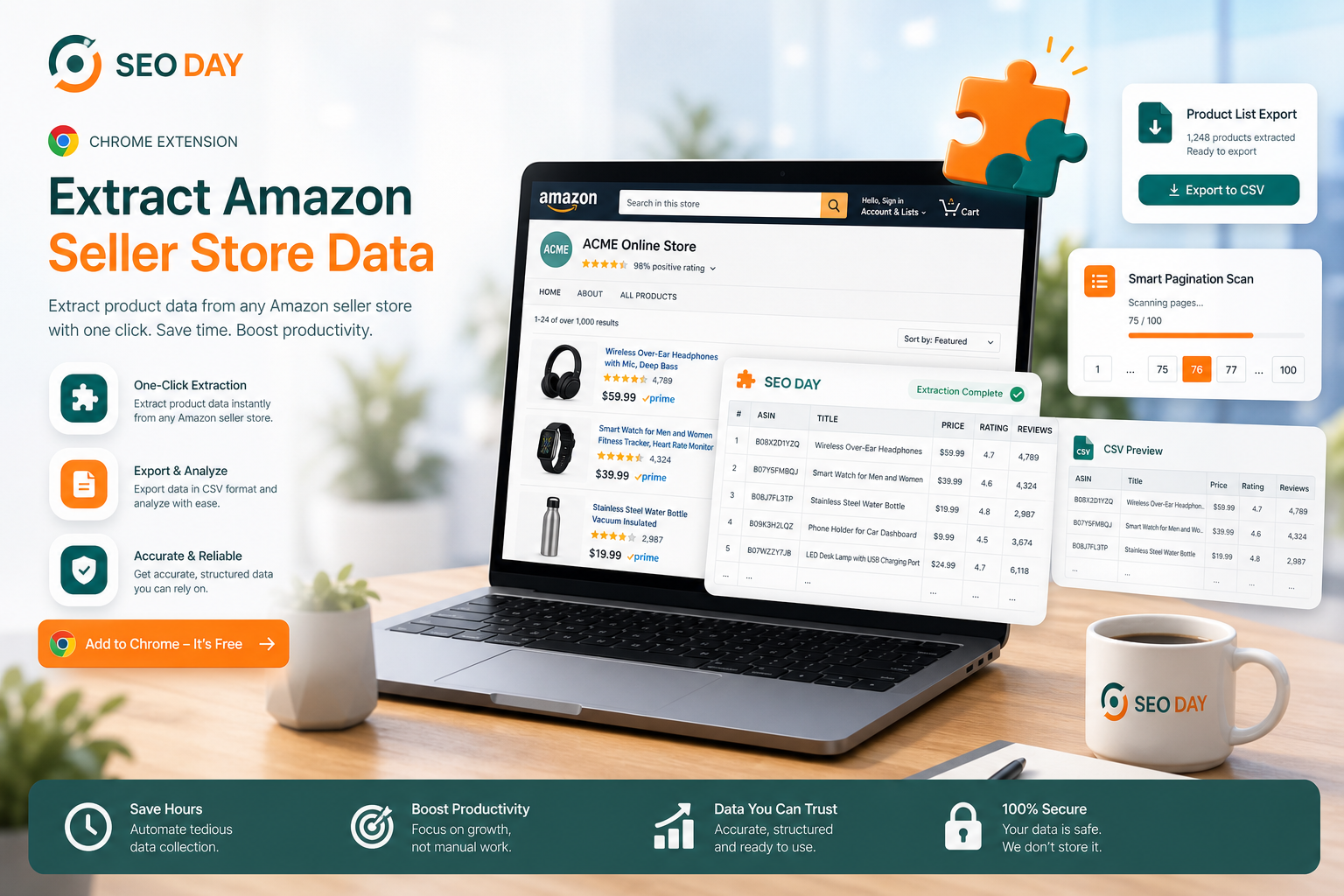
seoday-amz-seller-extension
A focused Chrome extension for Amazon sellers: scan store and search pages, extract product data, and use it in a structured way – directly in the browser.
- Free – the extension is available to everyone at no charge.
- Provided for the SEO-Day conference community.
- Ideas welcome – send improvement suggestions via the contact form below.
Chrome Web Store: We plan to publish the extension in the official Chrome Web Store. Whether Google will allow it to remain available long term will only become clear after their review – we will find out. In the future, you will then also be able to install it directly from the Chrome Web Store.
Installation and usage guide
Follow the ten steps in order. Each step with a screenshot shows exactly what you should see on your screen – so installation and first use work even without prior experience.
-
Download ZIP
Click the button and save the ZIP file to your computer. No sign-in required – the download starts immediately.
Download extension as ZIP -
Unzip the file
Unzip the file with a double-click or your archive tool. You get a folder with all extension files (including manifest.json). Remember the location – you need this folder in the next step.
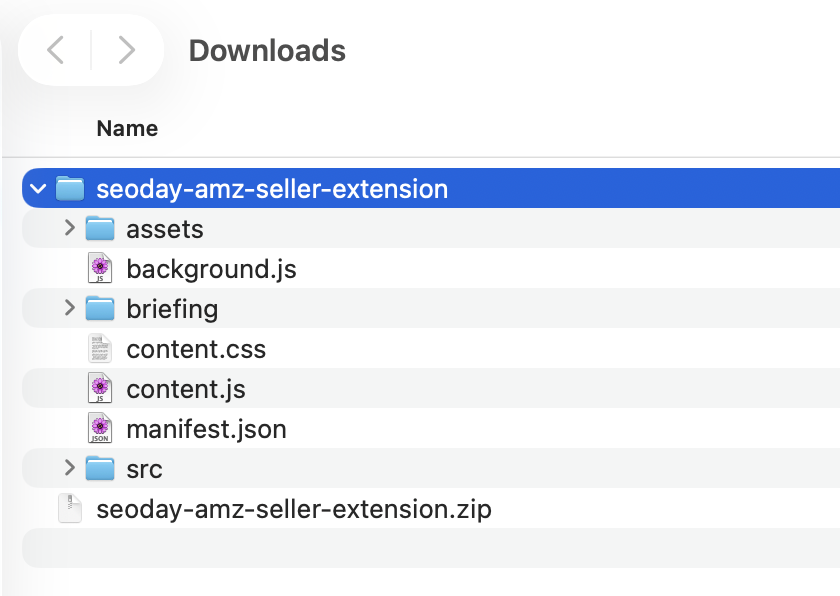
This is what the unpacked folder looks like – select this folder, not the ZIP file. -
Load extension in Chrome
In Chrome, open the address bar and enter chrome://extensions. At the top left, click “Load unpacked”.
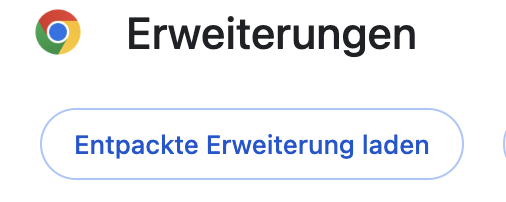
The “Load unpacked” button is at the top left of the extensions page. -
Select folder
In the file dialog, go to the unpacked folder from step 2, select it, and confirm with “Select” or “Open”. Chrome installs the extension from this folder.
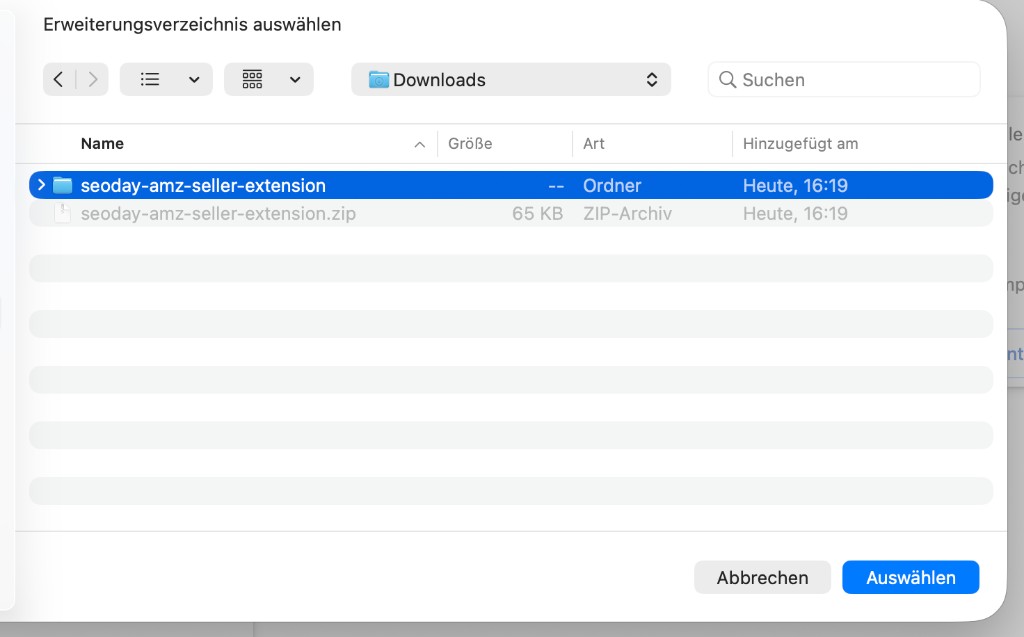
Select the entire folder – not individual files inside it. -
Confirm installation
After selection, “AMZ Seller - Helper” appears in your extensions list. The toggle should be on – then installation is complete.
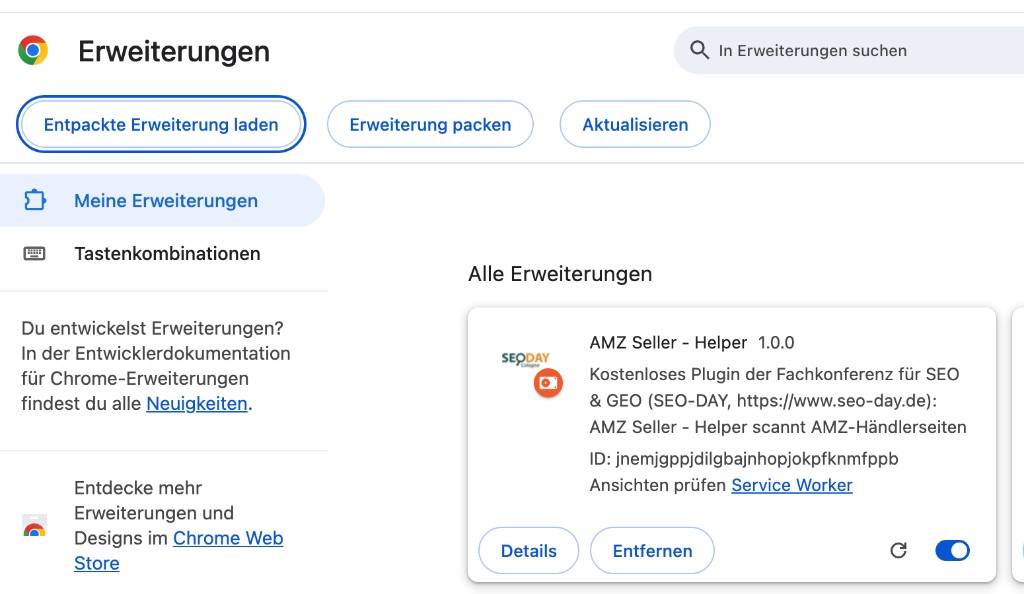
The extension is installed when it appears in the list and is enabled. -
Pin the extension
Click the puzzle icon at the top right in Chrome. In the list, find “AMZ Seller - Helper” and click the pin next to it so the icon stays visible in the toolbar.
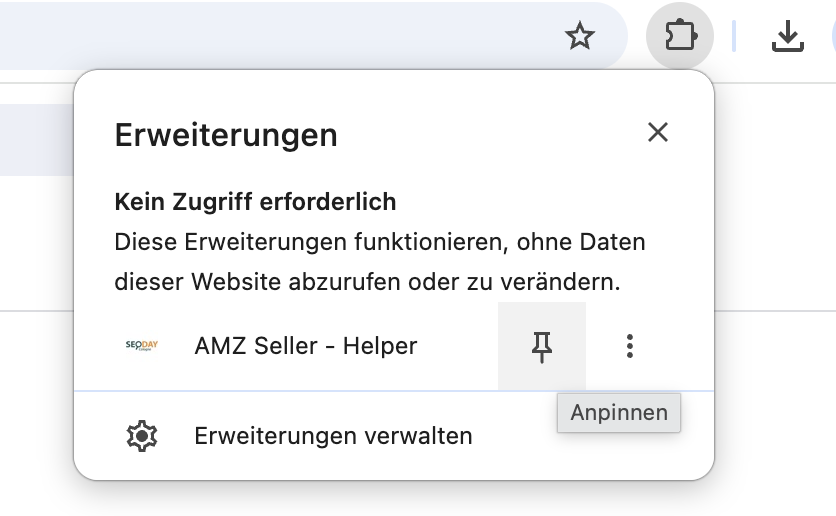
Click the pin – then the extension icon stays in the toolbar. -
Icon in the toolbar
After pinning, you see the small extension icon at the top right next to the puzzle piece. Use this icon to start the extension on any Amazon page.
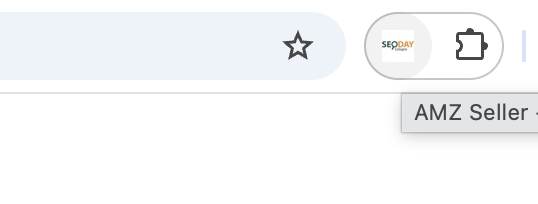
The pinned icon is your entry point for all following steps. -
Open Amazon store
Open an Amazon shop or store URL in Chrome – for testing you can use this example URL. Then click the extension icon in the toolbar.
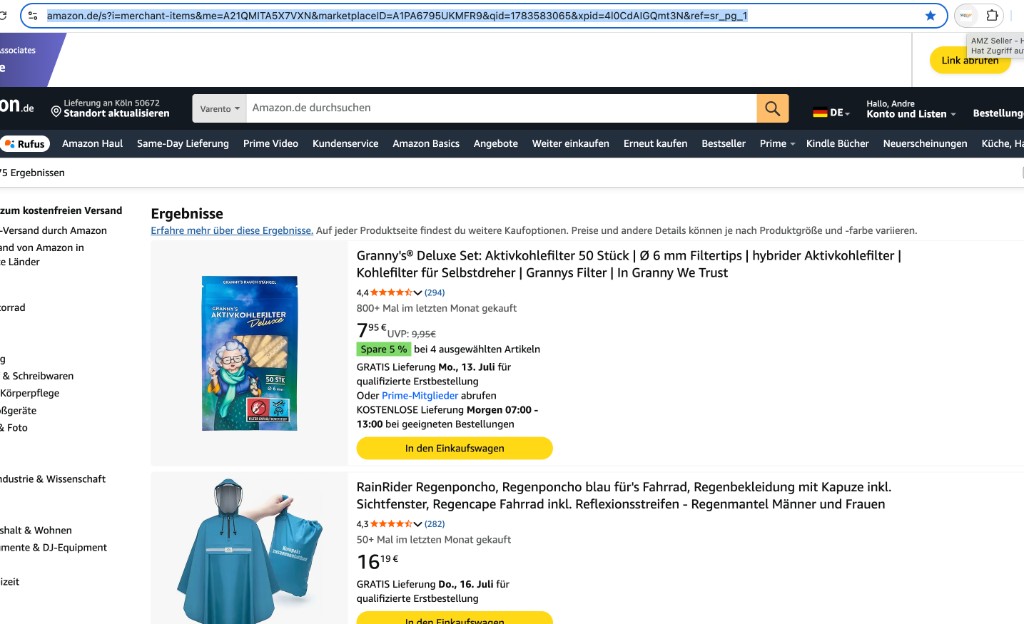
Amazon store open and extension started via the toolbar icon. -
Start scrape
The AMZ Seller Helper panel opens on the right. Check the displayed URL and click the orange “Scrape” button to start data collection.
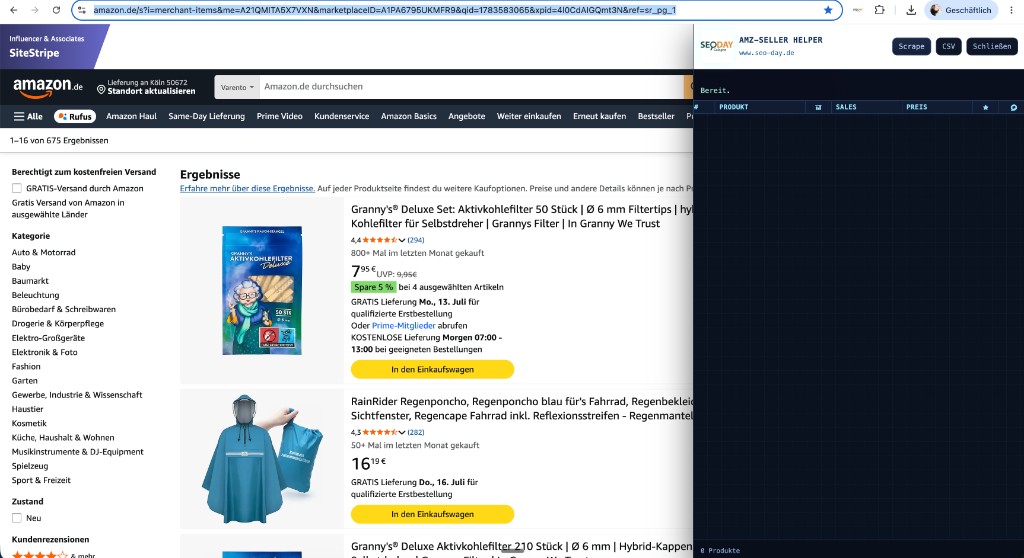
The panel is ready – click “Scrape” to start extraction. -
Extract data
The extension automatically goes through store pages. You see progress, revenue, and a growing product table. When finished, you can export the data as CSV.
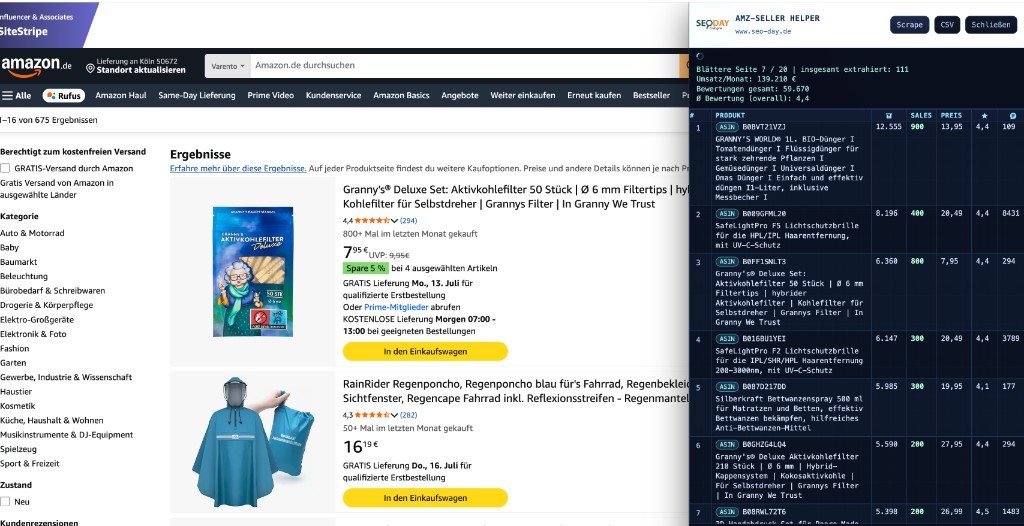
During scraping, products and metrics are shown live in the table.
Submit an idea
If you have ideas, you can reach us here via "Contact us".